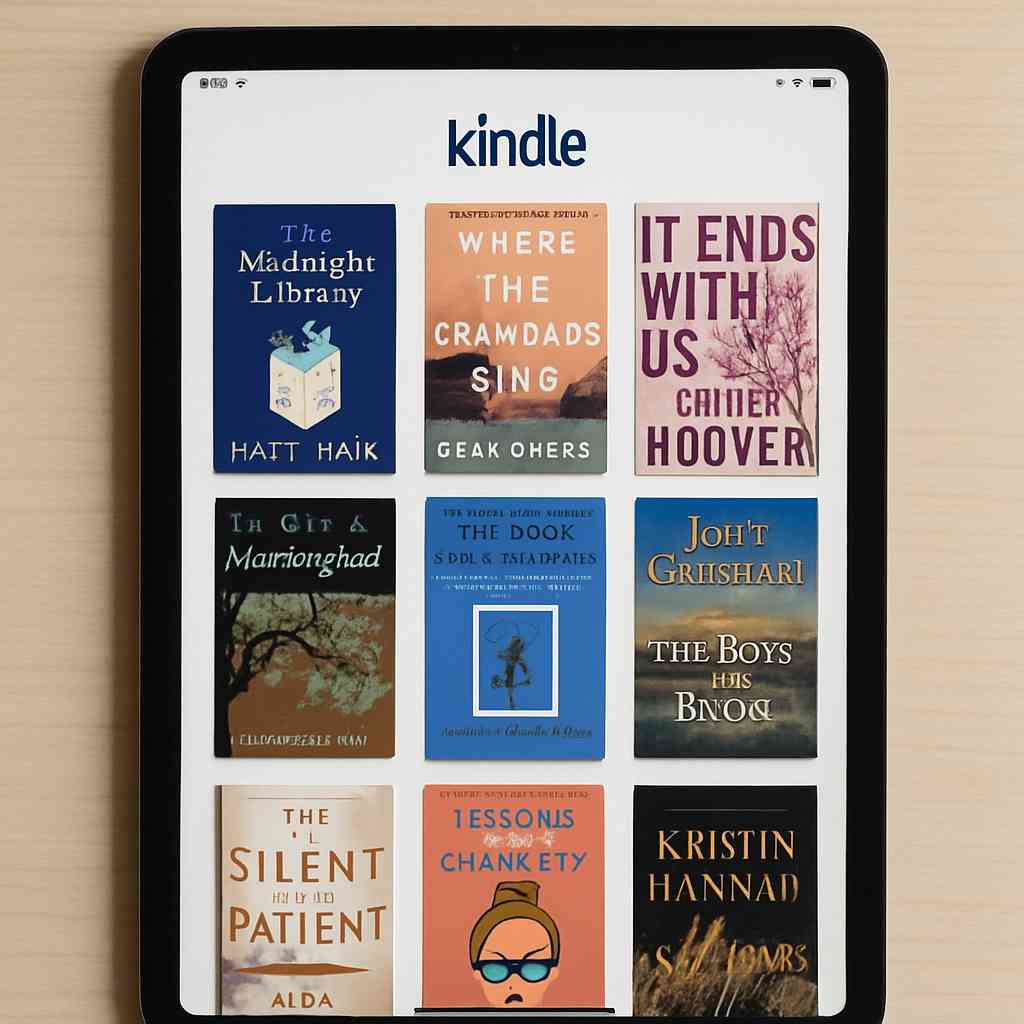
iPad Kindle Book Purchase Made Easy
Navigating the world of eBooks can seem daunting, especially if you’re new to using a Kindle app on your iPad or iPhone. But don’t worry; purchasing and downloading Kindle books is simpler than you think. With a few straightforward steps, you’ll be reading your favorite titles in no time. In this guide, we’ll walk you through how to purchase Kindle books on your iPhone or iPad, and answer some common questions you might have.
The Kindle app is a versatile tool that allows you to access thousands of eBooks, including bestsellers, classics, and everything in between. It’s available on various devices, including iPhones and iPads, making it easy to carry your library wherever you go. But how do you get started?
What is the Kindle App?
The Kindle app is a free application by Amazon that allows users to read eBooks on devices other than a Kindle eReader. It’s designed to give you access to your Kindle library and the Kindle Store, where you can browse and purchase new books.
Can You Buy Books Directly from the Kindle App?
One common question is whether you can buy books directly from the Kindle app on an iPad or iPhone. Due to Apple’s App Store policies regarding in-app purchases, the Kindle app does not allow direct purchases of books. However, there are easy workarounds to get your favorite titles onto your device.
How to Purchase Kindle Books on Your iPad or iPhone

Step-by-Step Guide to Buying Kindle Books
- Open Your Web Browser: Start by opening Safari or any web browser on your iOS device.
- Visit the Amazon Website: Navigate to the Amazon website (www.amazon.com) and sign in to your account. If you don’t have an account, you’ll need to create one.
- Search for Your Book: Use the search bar to find the book you want to purchase. You can search by title, author, or genre.
- Select Your Book: Click on the book title to open its product page.
- Choose Your Format: Ensure that the format is set to Kindle Edition.
- Complete Your Purchase: Click on the “Buy now with 1-Click” button to purchase the book. The book will be added to your Kindle library.
- Open the Kindle App: Once purchased, open the Kindle app on your iPad or iPhone.
- Sync Your Device: Tap the “Sync” button to refresh your Kindle library. Your new book should appear in your library, ready to download and read.
Alternative Ways to Purchase Kindle Books
- Amazon App: You can also use the Amazon app to purchase Kindle books. The process is similar to using a web browser. After purchasing, sync your Kindle app to access your new book.
- Using a Computer: If you prefer, you can purchase books using a computer and then sync your Kindle app on your iOS device.
Frequently Asked Questions
Do You Have to Buy Kindle Books from Amazon?
Yes, Kindle books are typically purchased through Amazon. They are designed to be read on Kindle devices and apps, which are tied to the Amazon ecosystem.
How to Download Kindle Books on My iPad?
Once you’ve purchased a book, open the Kindle app on your iPad and sync your library. Tap on the book cover to download it to your device.
Can You Read Kindle Books on the iPad?
Yes, the Kindle app makes it easy to read Kindle books on your iPad. The app provides features such as customizable fonts, background colors, and a built-in dictionary to enhance your reading experience.
Is Buying a Kindle Book an eBook?
Yes, a Kindle book is a type of eBook that is formatted specifically for Kindle devices and applications. It offers digital features like adjustable text size and instant dictionary lookup.
Troubleshooting Common Issues
My Book Isn’t Showing Up in My Kindle App
If your book doesn’t appear, ensure that you’ve completed the purchase and that your Kindle app is synced. Check your internet connection and try syncing again.
I Can’t Access My Amazon Account
If you’re having trouble accessing your Amazon account, ensure that you’re using the correct email and password. You can reset your password if necessary by following the prompts on the Amazon login page.
The Kindle App Isn’t Working on My Device
Ensure that your app is updated to the latest version. If issues persist, try restarting your device or reinstalling the app.
Final Thoughts
Purchasing Kindle books on your iPad or iPhone is a straightforward process once you understand the necessary steps. Although you cannot buy books directly through the Kindle app, using a browser or the Amazon app provides a seamless alternative. With this guide, you’re now equipped to expand your digital library and enjoy reading wherever you are. Happy reading!

 Next Post